
PNG 轉 STL

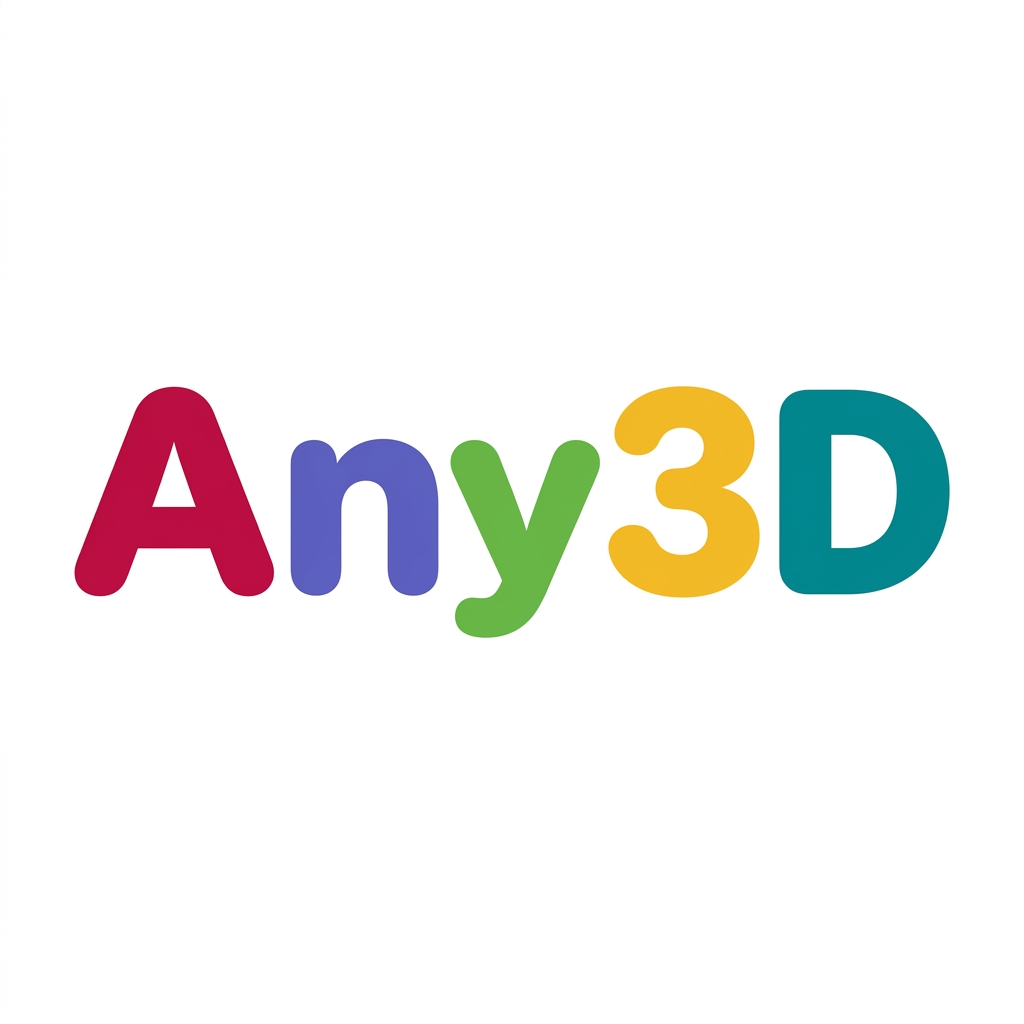
PNG → 可列印 STL:透明背景提取輪廓做印章,或高度圖做浮雕/燈片,免費線上。

工作區

加載中...

請稍候

關於此工具

專為 PNG 設計:透明通道便於等高線精準摳出印章與 Logo;一般照片可用高度圖製作浮雕或 lithophane。可調整解析度後匯出 STL,全程瀏覽器本地完成。

使用技巧

  • 1透明背景 PNG 做印章/徽標輪廓最乾淨
  • 2高度圖適合照片浮雕與 lithophane 燈片
  • 3調整解析度可平衡細節與面數

配置選項說明

Conversion Mode

Conversion Mode

預設值Contour

Select how the image should be converted into 3D geometry.

Contour推薦

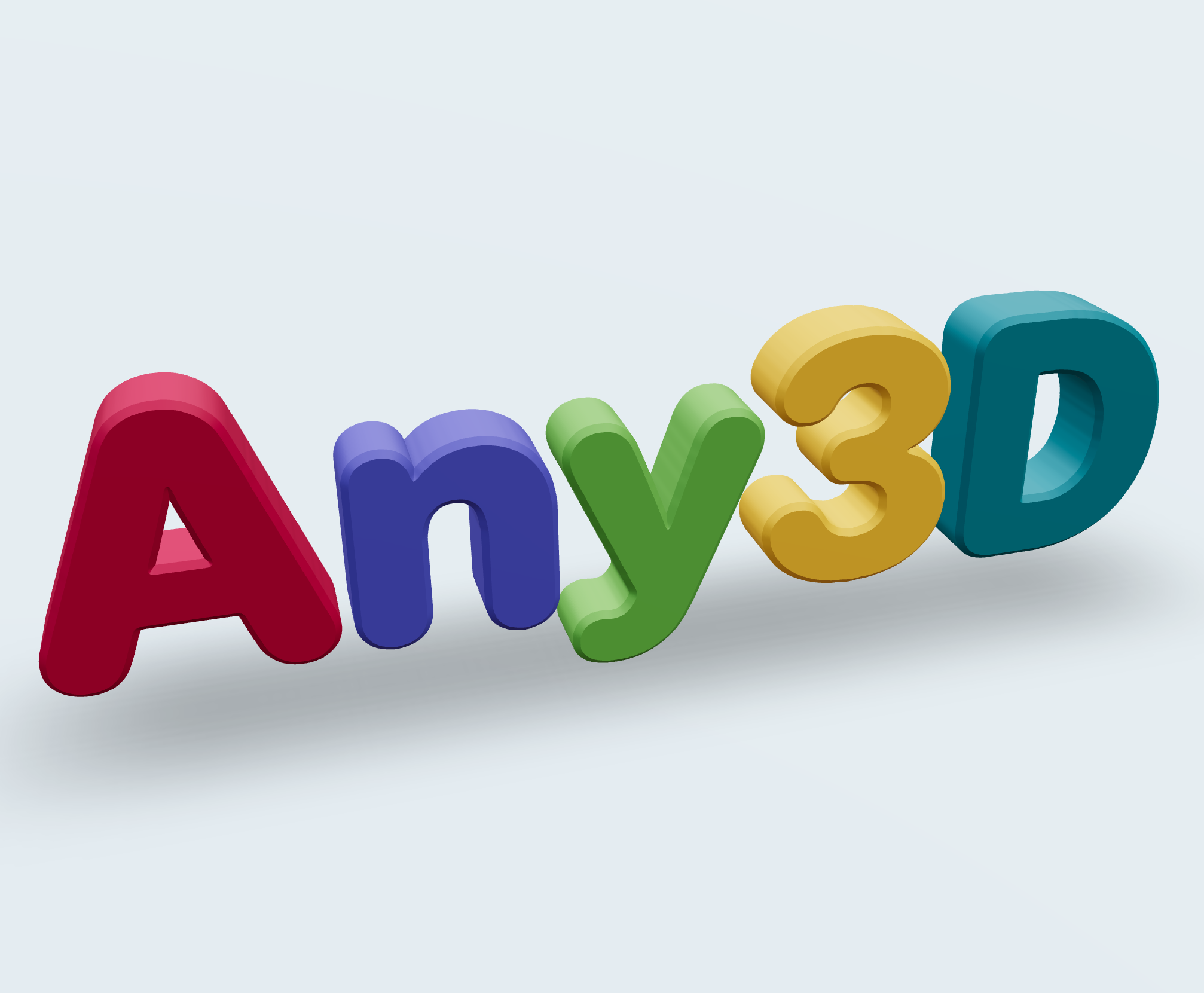
Generates solid shapes with uniform thickness from image outlines. Ideal for stamps, logos, nameplates, and other uniform-thickness objects.

Heightmap

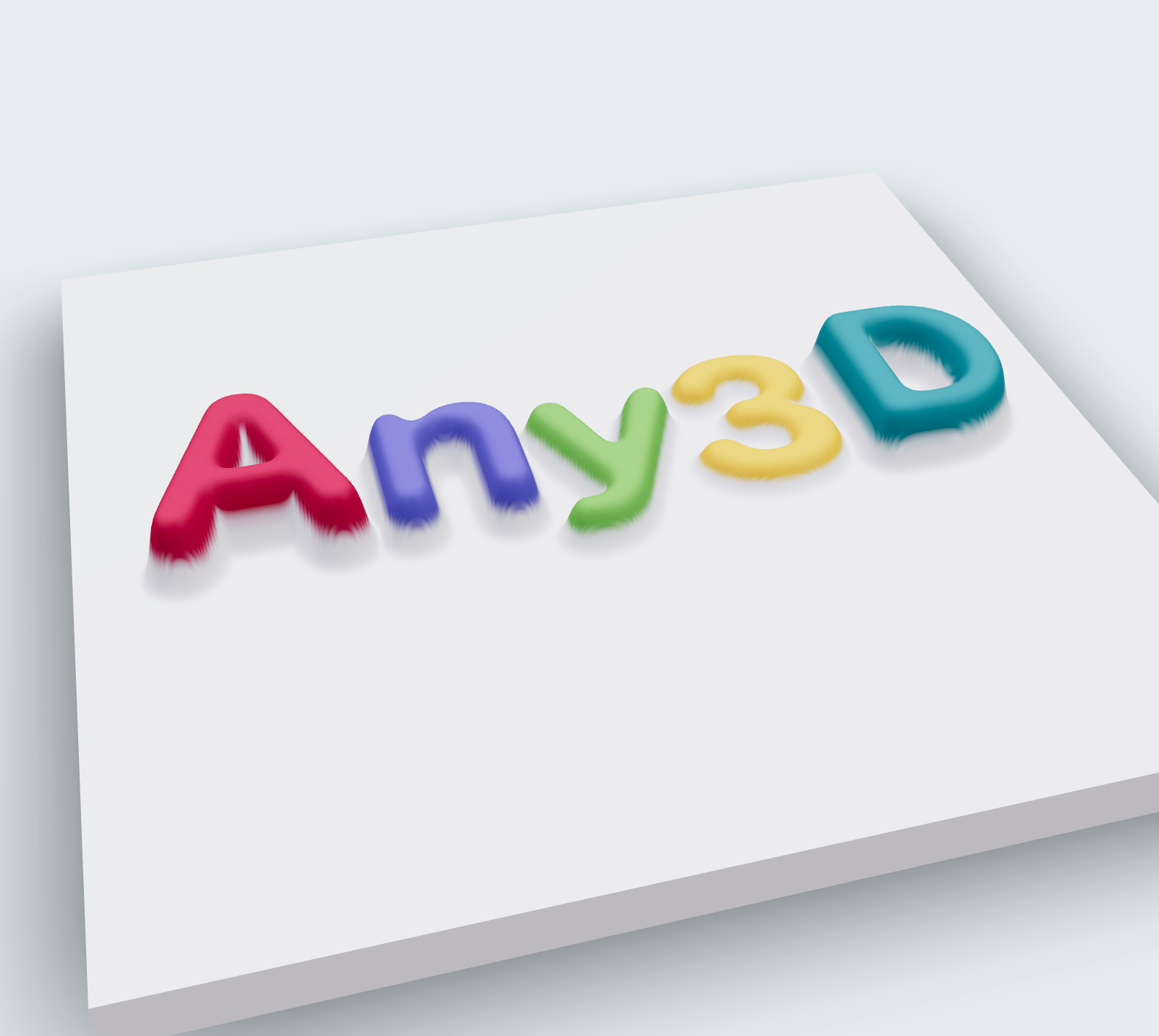
Creates a relief surface based on image brightness, so brighter areas are raised and darker areas are recessed. Perfect for photo reliefs, terrain models, and artistic surfaces.

Contour Settings

Invert

預設值关闭

Swap which parts of the image become solid and which become empty. Useful when the background is lighter than the subject.

关闭推薦
开启

Threshold

預設值128

範圍0 – 255

Controls the brightness cut-off point that determines which pixels become solid geometry. Lower values include more pixels as solid; higher values only include the darkest areas.

Depth

預設值10

範圍1 – 100

The thickness of the extruded geometry in millimeters. Controls how tall the final 3D model will be.

Bevel

預設值0.5

範圍0 – 5 · step 0.1

Adds rounded edges to the contour shape for a smoother, more polished finish. Higher values create more rounded edges.

倒角分段

預設值3

範圍1 – 8

用於建立倒角曲線的分段數。分段越多倒角越平滑,幾何複雜度也越高。

Angle Protection

預設值0.8

範圍0 – 1 · step 0.1

Preserves sharp corners and fine details by controlling the angle threshold. Lower values protect more detail; higher values smooth more aggressively.

Quality

預設值1

範圍0.1 – 2 · step 0.1

Controls the resolution of the generated mesh. Higher quality produces smoother surfaces but larger file sizes.

Heightmap Settings

Max Height

預設值5

範圍0.5 – 20 · step 0.5

The maximum height of the raised areas in millimeters. Controls the overall relief depth.

Base Thickness

預設值1

範圍0 – 5 · step 0.5

The thickness of the flat base plate beneath the relief. A thicker base provides more stability for printing.

Smooth Level

預設值2

範圍0 – 10

Applies smoothing to the heightmap surface to reduce noise and stair-stepping artifacts. Higher values produce smoother surfaces.

Resolution

預設值400

範圍100 – 400 · step 50

Controls the detail level of the generated mesh. Higher resolution preserves more image detail but increases file size.

Invert

預設值关闭

Swap the height mapping, so brighter areas become recessed and darker areas become raised.

关闭推薦
开启

格式說明

輸入格式

副檔名:
png
全名:
Portable Network Graphics
類型:
Image
格式:
PNG
常用工具:
PhotoshopGIMPKritaPaint.NET
開啟方式:
Image EditorWindows PhotosPreview (Mac)
說明:
PNG 是無損光柵圖片格式,支援 8 位元 Alpha 透明通道,邊緣清晰、無壓縮假影,是輪廓類圖片轉 3D 模型的首選輸入。相較於 JPG,PNG 不會在深色背景與主體邊緣產生色塊,黑白高度圖或帶透明背景的剪影在轉換時能得到更乾淨的網格。 PNG 的代價是檔案體積大於同尺寸 JPG,且不支援 CMYK 等印刷色彩模式。用於 3D 轉換時注意兩點:高度圖建議使用 16 位元灰階以保留地形細節,本站最大支援 4096×4096 解析度;透明背景會自動被偵測並處理,無需手動去背。

備註:

  • 最大支援解析度:4096×4096 像素
  • 透明背景會自動偵測並處理

支援特性:

  • 無損壓縮保留影像品質
  • Alpha 通道透明背景,便於精確輪廓提取
  • 廣泛的色彩支援(24 位元 RGB + 8 位元 Alpha)

輸出格式

副檔名:
stl
全名:
Stereolithography
類型:
3D Mesh
格式:
STL (Binary / ASCII)
常用工具:
CuraPrusaSlicerChituboxSimplify3D
開啟方式:
Slicer SoftwareMeshLabWindows 3D ViewerSTL Viewer Online
說明:
STL 是 3D 列印領域事實標準的網格格式,自 1987 年誕生至今,僅儲存三角形表面資料,不包含顏色、紋理或材質。幾乎所有切片軟體(Cura、PrusaSlicer、Bambu Studio、ChiTuBox)與印表機都直接支援 STL,這是它長盛不衰的根本原因。 使用 STL 有兩個經典坑:一是檔案不攜帶單位定義,毫米與英吋導出的 STL 在磁碟上無法區分,務必在切片軟體中確認縮放;二是它存在 ASCII 與二進位兩種編碼,ASCII 可讀但體積大 4-6 倍,二進位緊湊且是預設匯出選擇。若模型需要多色列印、材質或列印參數,應改用 3MF,它在保持切片相容的同時攜帶更豐富的列印資訊。

備註:

  • 不支援顏色、紋理或材質
  • 無單位定義,請在切片軟體中確認比例
  • ASCII 格式比二進位大 4-6 倍

支援特性:

  • 僅三角形網格,簡單且通用
  • 二進位與 ASCII 編碼選項
  • 可直接匯入 Cura、PrusaSlicer、Chitubox 等

使用方法

1

載入帶透明通道 PNG

匯入透明通道圖示或灰階高度圖 PNG 資料。

2

設定基底厚度

定義實體基板厚度與最大浮雕凸起高度數值。

3

設定反轉與平滑度

控制深色或淺色像素的擠出高度並套用網格平滑。

4

匯出實體 STL

產生並下載適用於光固化樹脂或 FDM 列印的水密 STL。

Q

什麼樣的 PNG 轉 STL 效果最好?

A

做印章或 Logo 時優先選透明背景或高對比黑白圖;做浮雕或燈片則用清晰、對比適中的灰階或彩色圖。如果背景複雜,建議先裁切主體再轉換。

Q

PNG 的透明區域會如何處理?

A

等高線模式下,透明區域通常不會生成幾何形狀,等於直接鏤空,只保留不透明主體,很適合印章與剪影。高度圖模式主要依亮度起伏判斷,透明區域的處理以預覽為準。

Q

PNG 的顏色會保留到 STL 嗎?

A

不會。STL 格式只儲存幾何形狀,不包含顏色資訊,所以轉換結果一定是單色。需要彩色模型請改用「PNG 轉 3MF」,或者列印後再手工上色。

Q

轉換後可以直接切片列印嗎?

A

等高線實體通常可直接匯入 Cura、PrusaSlicer、Bambu Studio 等切片軟體;浮雕與燈片建議先檢查底座和最小壁厚,必要時加上支撐再列印。

Q

為什麼我的 PNG 輪廓會捕捉到背景雜訊或多餘形狀?

A

等高線模式是依亮度提取區域,背景雜亂或帶色、以及抗鋸齒邊緣都可能產生多餘形狀。請先裁切主體、改用乾淨的透明背景,並調整閾值忽略微弱區域。

Q

模型會多大?STL 使用什麼單位?

A

匯出檔案以毫米為單位。垂直設定(深度、最大高度、底座厚度)皆為 mm,但水平尺寸會跟隨圖片的像素網格,因此建議先在切片軟體檢查尺寸,再縮放到目標大小。