
- 1
Ways to add files
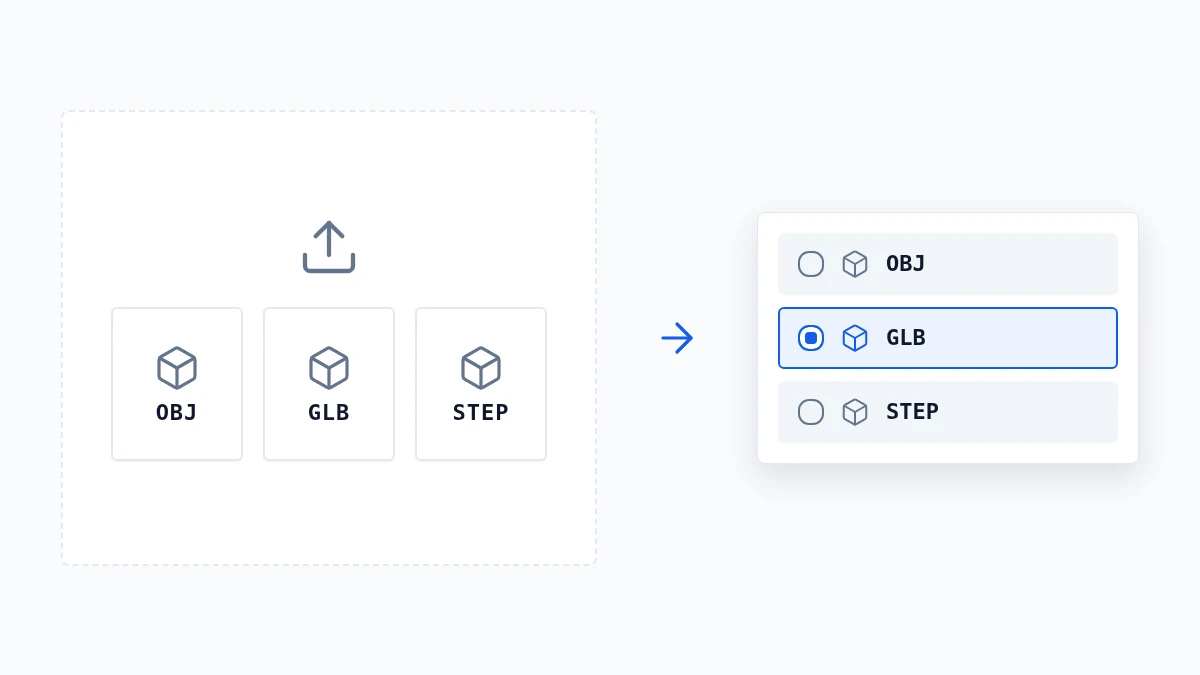
Drag files onto the upload area, click it to browse, or paste a file you copied. You can also drop a whole folder or a single ZIP; Any3D unpacks the ZIP in the page and looks inside.
- 2
When there is more than one model
If the files contain several models, a list opens so you can pick the one to work on. The list shows up to 20 models. Files that belong to a model, such as its materials and textures, stay with it.
- 3
Working on many models
Single-model tools open one model at a time. To convert or compress a whole set, use batch conversion or batch compression, which take up to 20 models per run.