Mode
DefaultLength
Measure polyline length, three-point angle, polygon area, or mesh part volume.
Length
Angle
Show 2 more optionsShow fewer options
Area
Volume
Upload a model, click to place points, and measure length, angle, area, or volume. Snap to vertices, edge midpoints, or face centers; choose straight or surface distance, planar or surface area; results update live in your preferred unit.
Please wait
After the model loads, select a measure mode and click on the surface to place points: finish length and area drafts with right-click or Enter, complete an angle with the third point, or select one or more mesh parts for volume and confirm. Snap can target vertices, edge midpoints, and face centers, with the tolerance adjustable in the current unit. Surface distance and surface area work only within the same mesh part and fall back to straight or planar results when they fail; up to 50 measurements are kept. Export the current view as an image, or a PDF report with a screenshot and measurement table.
DefaultLength
Measure polyline length, three-point angle, polygon area, or mesh part volume.
DefaultStraight
Straight measures the Euclidean distance in space; surface follows an approximate path along the mesh.
Straight distance: the shortest line between two points in space, not following the model surface. Use for overall dimensions or center-to-center distances.
Surface distance: shortest path along the mesh edge graph, so the polyline hugs the surface. Only works within the same mesh part; falls back to straight if the path fails.
DefaultPlanar
Planar calculates the polygon area on the best-fit plane; surface approximates the curved area under it.
Planar area: projects the polygon onto the best-fit plane and calculates the area. Best for roughly coplanar regions.
Surface area: sums the triangle areas covered by the polygon; edges follow the mesh surface. Best for curved regions.
DefaultOff
Also display 180° minus the measured angle.
DefaultOff
When on, measurements hidden behind the model are completely invisible. When off, occluded parts are shown dashed with semi-transparent points.
DefaultOn
Snap picks to mesh keypoints within the tolerance radius.
DefaultOn
Snap to the nearest vertex.
DefaultOn
Snap to the nearest edge midpoint.
DefaultOn
Snap to the center of triangle faces.
Default1
Range0.001 – 1000 · step 0.01
Snap search radius in the current length unit. Larger values make it easier to hit keypoints.
Deletes every finished measurement and resets the current draft.
Hides or shows a single measurement in the scene while keeping it in the list.
Removes a single finished measurement from the list.
Keep up to 50 measurements at once. When the limit is reached, delete some items before adding more.
Hides or shows every measurement in the scene with one click while keeping them in the list.
DefaultOn
PNG image of the current view with visible measurements.
DefaultOn
PDF file with a screenshot and a table of measurements.
Drag and drop STL, GLB, OBJ, FBX, 3MF, PLY, or STEP
Click the model for length, angle, or area; select mesh parts for volume
Check the results in the list, then export an image or PDF
No. Upload only loads the preview. Every measurement requires your input: place points for length, angle, and area, or select mesh parts for volume. Nothing is added to the list until you finish a draft.
With snap enabled, each click finds the nearest vertex, edge midpoint, or face center within the tolerance radius. You can toggle each snap target, set the tolerance in the displayed unit, hold Alt to temporarily disable snap, or hold Shift to temporarily increase the radius.
Straight distance is the shortest chord between two points in space and does not follow the model. Surface mode finds a shortest path along the mesh edge graph so the polyline hugs the surface; it only works within the same mesh part and falls back to straight if it fails.
Switch to angle mode, click the vertex first, then one point on each of the two edges. The scene shows the two legs, an arc, and the angle value. You can enable Show supplementary angle to also see 180° minus the measured angle.
Planar area projects the polygon onto a best-fit plane and is suitable for roughly flat regions. Surface area sums the triangular faces under the footprint and is better for curved surfaces; in surface mode the edges also try to follow the model surface.
Volume is computed as signed tetrahedral sum over the mesh parts you select. Open or non-manifold meshes may give only an estimate. Multi-part models are summed for the selected parts only after confirmation; nothing is measured automatically.
Yes. On a finished length, angle, or area measurement, drag any measure point to re-snap and update the result live. Scene rotation is temporarily disabled during drag and resumes when you release. Note: dragging a point on a surface measurement converts the surface path back to straight; delete and re-measure if you need the surface path.
The image captures the current 3D view with visible measurement annotations. The PDF generates a short report with the screenshot, source file name, unit, and a table of all measurements. You need at least one measurement to export the PDF.
After the model loads, the tool briefly prepares point picking, and the preview shows a "Preparing pick acceleration" overlay in the meantime. Denser meshes take longer; once the overlay clears, you can pick points as usual.
By default, occluded parts show as dashed lines and semi-transparent points, so you can verify annotations from any angle. Enable Hide occluded measurements to completely hide occluded lines, points, area fills, and value labels.
No. The unit only affects the numeric display: length, area, and volume use suffixes like mm, mm², and mm³. The stored points and real dimensions remain unchanged. The snap tolerance converts together with the unit, keeping the physical snap radius the same.
You can keep up to 50 measurements at once. When you reach the limit, delete or clear some items before adding more. Individual items can be hidden or deleted, and you can hide or show all items with one click.
Yes, Any3D's core features are free to use forever. We provide format conversion, model optimization, and online preview at no cost, with no registration required.
No. Files you select are processed only in your browser on this device, so they never leave your device and are never sent to our servers. We don't store any user files; after processing, related data in browser memory is released.
No installation required. Any3D is entirely browser-based; just open the webpage to use all features. It works on Windows, Mac, Linux, and other major operating systems.
The processing capacity depends on your device performance and the model's vertex count and texture complexity, rather than file size alone. We impose no file size limit, but when a model exceeds what your device can handle, the page may lag or even crash.

Your GLB file is only 10MB, but on your phone it eats 200MB of VRAM and crashes. Let's take a closer look at what's really going on.

Why does a 1.5MB JPG balloon to 87MB in VRAM? What's so wrong with PNG/JPG from a GPU's perspective? And how do GPU-native texture formats, Basis Universal, and KTX2 all fit together?
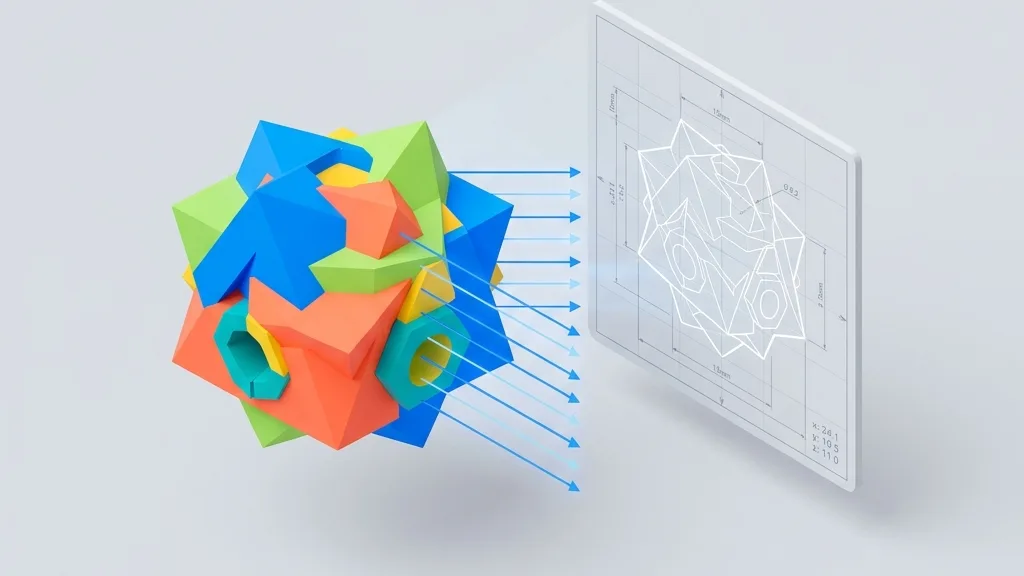
Ditch heavy CAD software: export STL and STEP models as high-res 2D screenshots with dimension lines and transparent backgrounds, right inside your browser.

Desktop, mobile, VR, mini-programs: which compression combination fits your 3D project? A decision matrix and an automation script do the choosing for you.