
Show layer
Defaulton
Show or hide each layer's geometry, text, and dimensions. The SVG export keeps only the layers left on; hidden or frozen layers in the file start off.
Convert 2D DWG CAD drawings to clean SVG vector graphics with layer filtering on export.
Please wait
This tool converts 2D DWG drawings directly into clean scalable vector graphics (SVG) in your browser. All drawing lines, polylines, arcs, and text are preserved as vector primitives. Turn layers off in the left panel and the exported SVG keeps only the visible layers; layers that are off or frozen in the file start switched off and can be turned back on in the panel. Strictly limited to 2D drawings; 3D solids and meshes are automatically intercepted.
Defaulton
Show or hide each layer's geometry, text, and dimensions. The SVG export keeps only the layers left on; hidden or frozen layers in the file start off.
Drag and drop your AutoCAD 2D DWG file or click to browse from disk.
Inspect linework in the 2D canvas and switch layer visibility on or off.
Lines, curves, and text become crisp vector paths.
Save the SVG with only the layers you left visible.
SVG is a flat two-dimensional format, so 3D solids and volumetric meshes cannot be represented in it. Files that contain 3D geometry are stopped before conversion to avoid distorted flat output.
Switch off the layers you do not need in the left panel, then export: only the visible layers are written to the SVG. Layers that are off or frozen in the file start hidden, and you can switch them back on in the panel before exporting.
Yes. Blocks appear in the exported SVG at the same position and scale as in the preview, including nested blocks.
Yes. Curves are written as real curves instead of short straight segments, so the outline stays clean at any zoom level.
Yes. The generated SVG uses clean, continuous stroke paths without unwanted rasterization or fill artifacts. It can be directly loaded into CAM software like LightBurn or LaserWeb for precise vector cutting.
The converter opens the main AutoCAD DWG versions, from R14 and 2000 up to 2018. You do not need AutoCAD or any plugin installed.

Your GLB file is only 10MB, but on your phone it eats 200MB of VRAM and crashes. Let's take a closer look at what's really going on.

Desktop, mobile, VR, mini-programs: which compression combination fits your 3D project? A decision matrix and an automation script do the choosing for you.

Fix the Web Worker unavailable error in Any3D: check desktop and mobile platforms, HTTPS, corporate VPN, CSP, and parental controls to restore background processing.
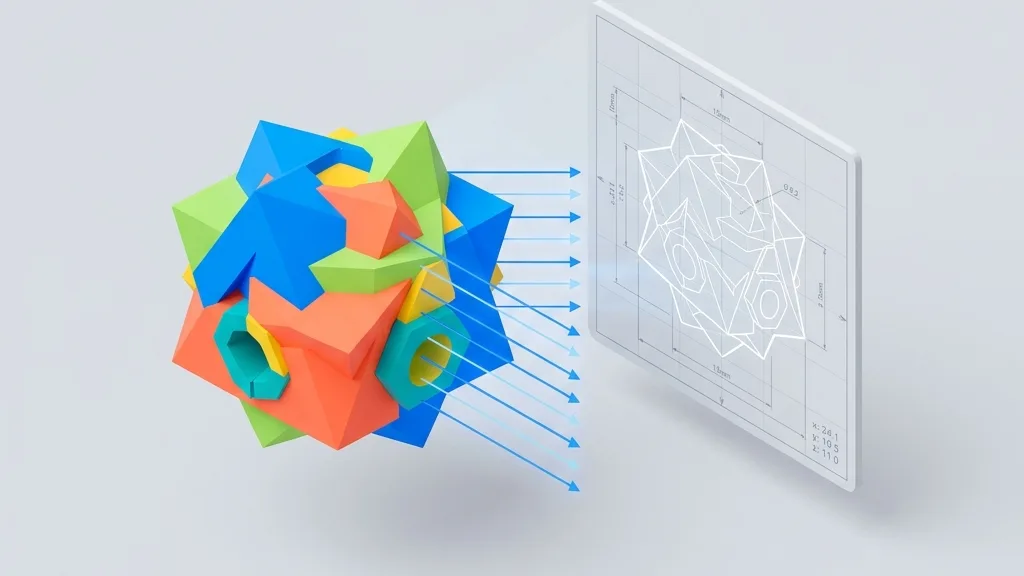
Ditch heavy CAD software: export STL and STEP models as high-res 2D screenshots with dimension lines and transparent backgrounds, right inside your browser.