JPEG to 3MF

JPEG to color 3MF: color photo reliefs and color previews, free online.

Loading...

Please wait

About This Tool

Convert JPEG photos to color 3MF (a format related to JPG). Use height maps for color photo reliefs; use contours for solid outlines. Lossy compression can affect fine color bands, so use a high-quality export. Entirely processed in your browser.

Tips

  • 1Use a high-quality JPEG export for more stable colors and details.
  • 23MF is best for color print previews; for monochrome solids, use JPEG to STL.
  • 3Crop complex backgrounds before converting.

Examples

Original

Original

Contour

Contour

Heightmap

Heightmap

About Configuration Options

Conversion Mode

Conversion Mode

DefaultContour

Select how the image should be converted into 3D geometry.

ContourRecommended

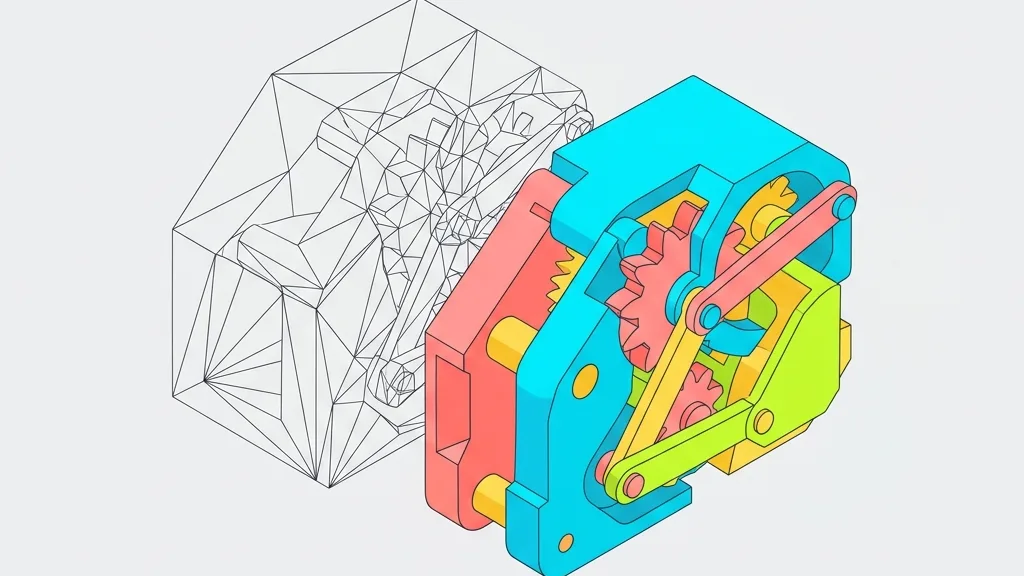
Generates solid shapes with uniform thickness from image outlines. Ideal for stamps, logos, nameplates, and other uniform-thickness objects.

Heightmap

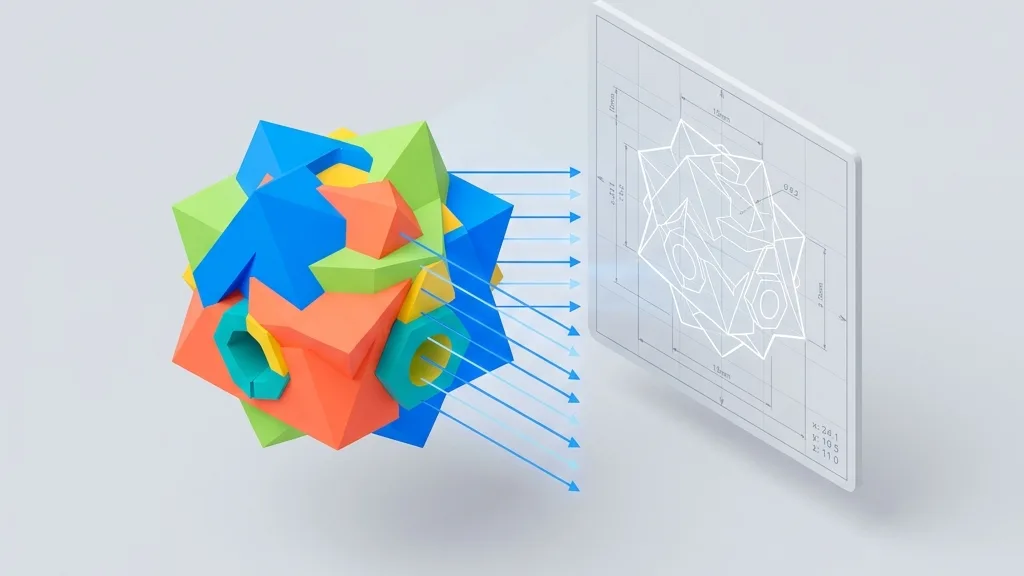
Creates a relief surface based on image brightness, so brighter areas are raised and darker areas are recessed. Perfect for photo reliefs, terrain models, and artistic surfaces.
Contour Settings

Invert

DefaultOff

Swap which parts of the image become solid and which become empty. Useful when the background is lighter than the subject.

OffRecommended
On

Threshold

Default128

Range0 – 255

Controls the brightness cut-off point that determines which pixels become solid geometry. Lower values include more pixels as solid; higher values only include the darkest areas.

Depth

Default10

Range1 – 100

The thickness of the extruded geometry in millimeters. Controls how tall the final 3D model will be.

Bevel

Default0.5

Range0 – 5 · step 0.1

Adds rounded edges to the contour shape for a smoother, more polished finish. Higher values create more rounded edges.

Bevel Segments

Default3

Range1 – 8

The number of segments used to create the bevel curve. More segments produce smoother bevels at the cost of more geometry.

Angle Protection

Default0.8

Range0 – 1 · step 0.1

Preserves sharp corners and fine details by controlling the angle threshold. Lower values protect more detail; higher values smooth more aggressively.

Quality

Default1

Range0.1 – 2 · step 0.1

Controls the resolution of the generated mesh. Higher quality produces smoother surfaces but larger file sizes.

Heightmap Settings

Max Height

Default5

Range0.5 – 20 · step 0.5

The maximum height of the raised areas in millimeters. Controls the overall relief depth.

Base Thickness

Default1

Range0 – 5 · step 0.5

The thickness of the flat base plate beneath the relief. A thicker base provides more stability for printing.

Smooth Level

Default2

Range0 – 10

Applies smoothing to the heightmap surface to reduce noise and stair-stepping artifacts. Higher values produce smoother surfaces.

Resolution

Default400

Range100 – 400 · step 50

Controls the detail level of the generated mesh. Higher resolution preserves more image detail but increases file size.

Invert

DefaultOff

Swap the height mapping, so brighter areas become recessed and darker areas become raised.

OffRecommended
On

Format Information

Input format

Extension:
jpg, jpeg
Full Name:
JPEG (Joint Photographic Experts Group)
Type:
Image
Format:
JPG / JPEG
Open With:
Image EditorWindows PhotosPreview (Mac)
Description:
JPG (JPEG) is the most universal lossy photo format, standardized by the JPEG committee in 1992, offering a good balance between quality and file size, and supported by virtually every device and software. It is ideal for photographs, screenshots, and web images. The downside of JPG is that compression introduces block artifacts and it does not support transparency, causing edges and text to blur. For image-to-3D conversion, JPG suits photographic height maps, but for contour-based conversion, PNG is recommended for clean edges; artifacts at the boundary between dark backgrounds and subject may affect the quality of the generated mesh.

Notes:

  • Maximum supported resolution: 4096×4096 pixels
  • Lossy compression may introduce artifacts on sharp edges

Supported Features:

  • Efficient lossy compression for photos
  • Broad compatibility across all platforms and editing tools
  • 24-bit RGB color support

Output format

Extension:
3mf
Full Name:
3D Manufacturing Format
Type:
3D Model
Format:
3MF
Open With:
Windows 3D Viewer3MF Viewer OnlineBlender3D Model Viewer
Description:
3MF is a modern 3D printing format from the 3MF Consortium, based on XML and packaged as a ZIP container. It preserves mesh data and supports per-part color, material, texture, and print properties. It is recommended for multi-color and multi-material printing. Major slicers (Bambu Studio, PrusaSlicer, OrcaSlicer) have native support. Compared to STL, 3MF carries richer information but is more complex. Some older slicers and printers may not recognize it. When converting from other formats, color and material mapping depend on source data. For simple single-color printing, STL remains sufficient. For multi-color, multi-material, or print parameter transfer, choose 3MF.

Notes:

  • Some older slicers and printers may not support 3MF
  • More complex than STL but carries richer information

Supported Features:

  • Per-part and per-vertex color support
  • Material and texture preservation
  • XML-based with ZIP compression
  • Native support in Bambu Studio, PrusaSlicer, OrcaSlicer

How to Use

1

Upload JPEG File

Drag and drop your JPEG file or click to browse.

2

Select Mode and Settings

Choose contour or heightmap mode and adjust parameters.

3

Download 3MF

Click Convert and immediately download your 3MF file.

Frequently Asked Questions

View all FAQs
Q

What is the difference between JPEG to 3MF and JPG to 3MF?

A

They are simply different filename extensions for the same image format. This page is tailored for the search term 'jpeg to 3mf'; the conversion capability is the same as JPG to 3MF.

Q

Why choose 3MF over STL?

A

3MF supports color information, which is essential for color printing and slicer previews; STL only includes geometry. For color photo reliefs or when color blocks matter, choose 3MF.

Q

Does JPEG compression affect colors?

A

Heavy compression may cause color banding and noise in smooth gradients, which become more noticeable in the 3MF. For best results, use a higher quality export, or apply moderate sharpening and noise reduction before converting.

Q

Can it be used directly for color 3D printing?

A

Most modern slicers and color printing workflows that support 3MF can import the file. The final color outcome depends on the printer and material; it's advisable to test a small sample first.

Q

Does the resolution of my JPEG affect the quality of the 3MF?

A

Yes, it does. The conversion samples the source pixels, so small or heavily downscaled JPEGs result in soft edges and blocky color areas. Use the largest, cleanest export you have; the output resolution setting can refine geometry, but it can't add details that the source never had.

Q

Can I preview the colors in my slicer before printing?

A

Yes, the 3MF file contains embedded color data, so modern slicers such as Cura, PrusaSlicer, and Bambu Studio display a colored preview before printing. This lets you check colors without wasting material, but the final print color depends on your printer and material.

Support Us