
3MF vs STL: Avoid These 3D Printing Pitfalls
A deep-dive comparison of 3MF and STL in real workflows. Uncover why Bambu Studio models crash in Cura, and master unit scaling and multi-color conversion tricks.
A common question from people new to 3D printing goes like this: "Why does a model I downloaded from MakerWorld show errors when I open it in Cura?" Behind it sits one of the basic format choices in 3D printing: keep using the long-established STL, or move to 3MF?
If you are deciding which format to save your models in, this guide compares the two and lists the pitfalls to watch for.
| Feature Comparison | Legacy STL Format | Modern 3MF Format |
|---|---|---|
| Origin Story | 1987, a chaotic list of triangles | 2015, an XML-based compressed container |
| Physical Units | Unitless (often causes 10x or 25.4x scaling disasters) | Explicitly defines millimeters, centimeters, or inches |
| Color & Materials | Pure geometry, no color support in the standard | Native support for multi-extruder, parameters, and materials |
| Manifold Integrity | Prone to holes, overlaps, and flipped normals | Spec enforces closed meshes, extremely slicer-friendly |
| File Size | Often bloated to tens or hundreds of MB | ZIP-compressed package (per the 3MF spec); usually smaller than an equivalent STL, actual savings depend on the model |
The Crash Zone: How Legacy STL Wrecks Your Prints
STL's working principle is brutally simple: it approximates a model's surface with countless tiny triangles. This leads to several "daily disasters" that can spike your blood pressure:
- The Mysterious 10x or 25.4x Shrink: STL files don't store "units" internally—just raw numbers. If you model a 10x10 block in SolidWorks and export in inches, the STL only records "10". When your slicer (like PrusaSlicer or Cura) reads it as millimeters by default, your model gets shrunk by a factor of 25.4. Quick fix: manually scale the model in your slicer to 2540% (inches to mm) or 1000% (cm to mm).
- Parts Scattered Everywhere: You've designed a mech with articulated joints or multi-color paint schemes. Export to STL, and either all parts get fused into one un-splittable blob, or you're staring at a folder full of dozens of chaotically named loose STL files. STL doesn't support a scene graph, so all assembly relationships are lost.
- Slicer Errors and Missing Surfaces: Due to floating-point precision issues, microscopic gaps often appear between STL triangles. You hit "Slice" with high hopes, and the software throws back "Non-manifold edge detected"—or worse, you print it and discover a chunk of the surface is just... missing.
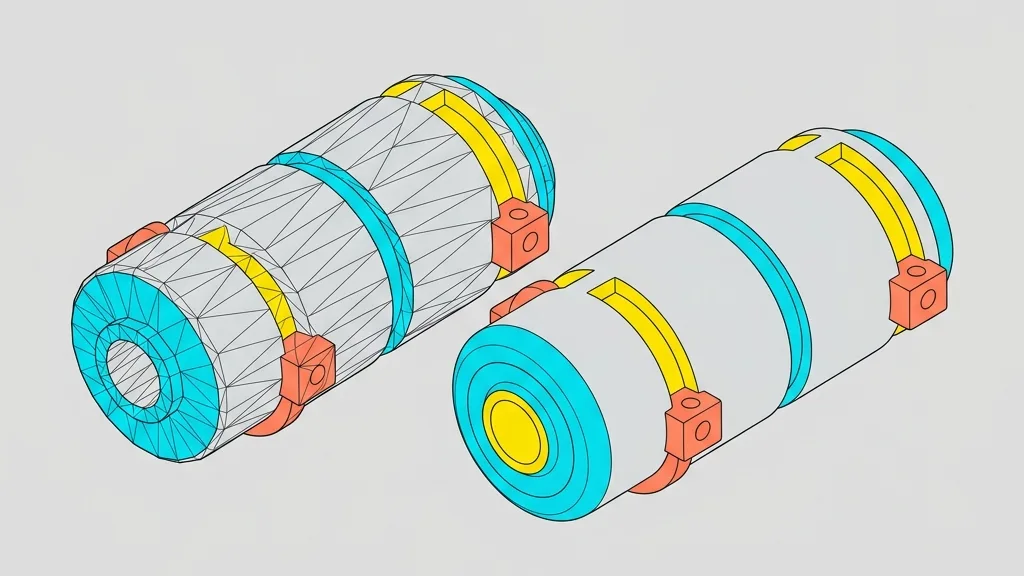
Why 3MF Rocks? It's Basically a ZIP File in Disguise
3MF (3D Manufacturing Format) is a modern standard cooked up by industry heavyweights like Microsoft, Bambu Lab, and Prusa Research.
A .3mf file is, at its core, a ZIP archive with a renamed extension. Inside, you'll find neatly organized XML geometry meshes, material textures, and even print bed arrangements and slicer parameters.
It natively carries units, supports multi-color, and the spec requires models to be closed manifolds—which outright cures STL's chronic ailments. Even better, thanks to modern compression algorithms, the same model in 3MF is often half the size (or less) of its STL counterpart.
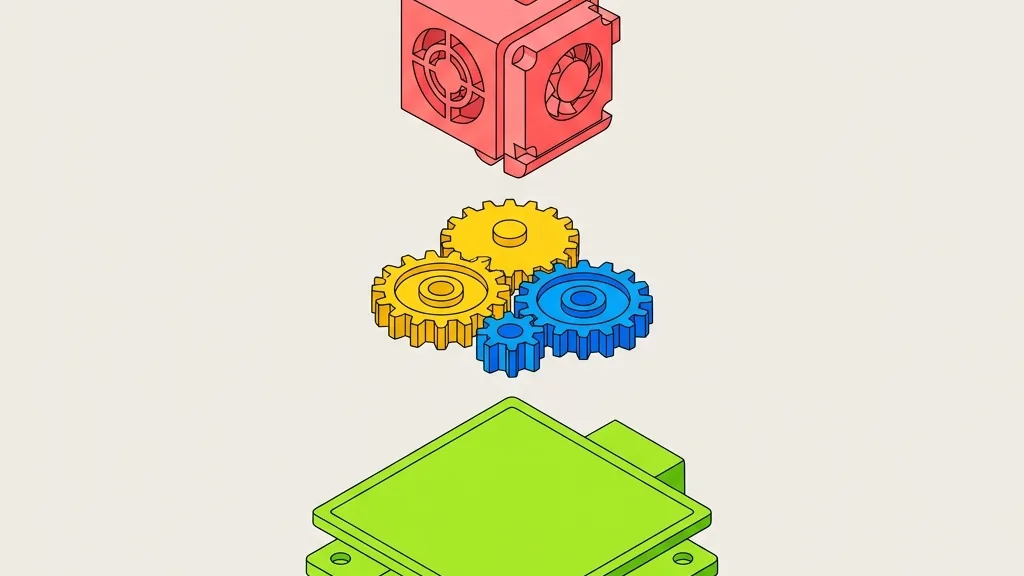
Pro Tip: How to Rescue a Bambu 3MF That Cura Refuses to Open
Back to the question at the start. Many 3MF models downloaded from community sites are "project files" saved by Bambu Studio or OrcaSlicer. They contain not just the model, but also Bambu-specific process nodes (like private .bbl config files). Cura, sticking strictly to the Microsoft-led generic standard, hits these unknown private extensions and crashes outright.
The Brute-Force Fix:
- Rename the downloaded
.3mffile to.zip. - Unzip it and locate the
Metadatafolder. - Delete the XML files that belong to the slicer's private configuration (you usually only need the core mesh at
3D/3dmodel.modeland the thumbnail at the root). - Re-select all remaining files, compress them into a ZIP archive, and rename the extension back to
.3mf. Voilà—you now have a clean, pure-geometry 3MF that any slicer can recognize.
If manually renaming and unzipping sounds like a chore, the easiest route is to use the browser-based Any3D 3MF to STL converter. No uploads, instant local conversion, and it strips out those compatibility landmines for you.
Real-World Q&A
If 3MF is so great, why are so many old models still in STL?
Historical inertia. Many legacy CNC machines and early 3D software never implemented 3MF import. STL is clunky, but like a plain text file (TXT), almost any software can open it. If you must modernize an old STL, you can use the Any3D STL to 3MF converter to wrap it in a modern container.
Will multi-color painting survive a 3MF-to-STL conversion?
Absolutely not. Standard STL is a bare clay model—it even stores vertex normals inefficiently, let alone colors. If you need to pass colored meshes between software, stick with OBJ with MTL textures, VRML, or even GLB.
How do I quickly check for mesh damage?
Before slicing, you can use the Any3D online 3D viewer in wireframe mode and scan for black lines at corners. Or just drop the model into the Any3D model analyzer to check bounding box dimensions and manifold status—it'll save you hours of wasted filament and electricity.
I just print random small stuff for fun. Do I really need to switch to 3MF?
If your model is a single block, a pen holder, and you don't need multi-color, STL is perfectly fine. But once you start tackling assembly models, multi-color prints, or files over 50MB, get into the habit of saving as 3MF. Your hard drive and your slicer will both thank you.