FBX to Image

FBX → multi-view screenshots, ideal for game asset previews and documentation.

Workspace

Loading...

Please wait

About This Tool

Render FBX as static images for game asset previews, documentation, and sharing. Capture animation frames; provide external textures. Supports multi-view layout and annotations.

Tips

  • 1Capture animation frames; provide external textures
  • 2Multi-view and 1×/2×/4× export
  • 3Optional transparent background PNG

About Configuration Options

Layout

View Layout

DefaultHorizontal four-up

Choose multi-view arrangement: horizontal four-up, vertical four-up, or a custom set of views and columns.

Horizontal four-upRecommended

Front, right, top and perspective in one row (1×4).

Vertical four-up

Front, right, top and perspective in one column (4×1).

Custom

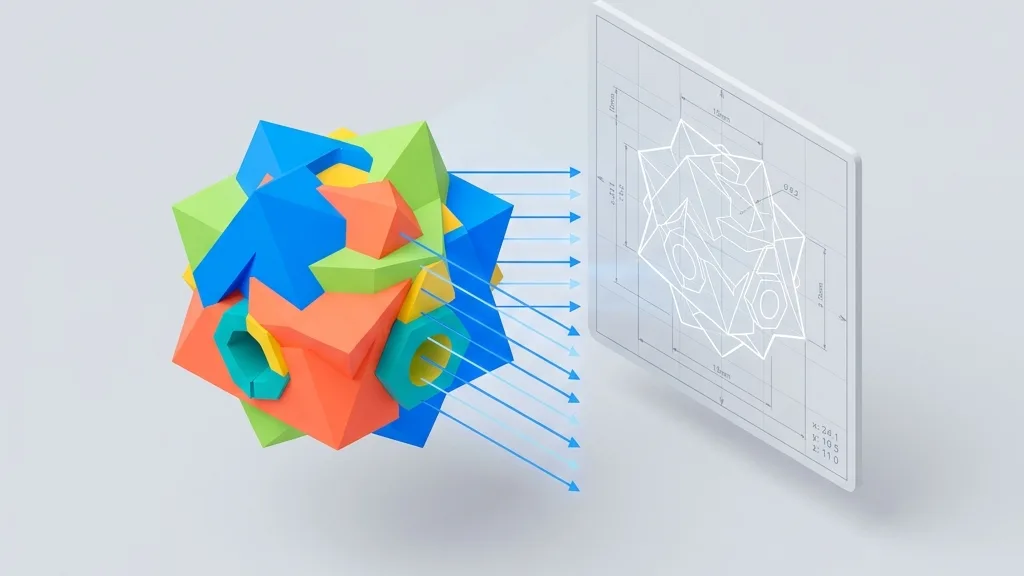
Pick views and column count for a custom grid.
Custom views

When using custom layout, choose which camera directions to include.

Columns

Default3

Range1 – 5

Number of columns in the custom grid (1-5, capped by selected view count).

Margin & spacing

Margin

Default0.012

Range0 – 0.1 · step 0.005

Outer margin around the board as a fraction of the short edge.

Gap

Default0.012

Range0 – 0.05 · step 0.002

Spacing between viewports as a fraction of the short edge.

Margin background

Default#ffffff

Fill color for the margin area; transparent is allowed (falls back to white for JPG).

Image background

Viewport background

Default#f5f5f5

Background for each 3D viewport; pick a color or transparent (alpha kept for PNG/WebP).

Dimensions & unit

Show Dimension Lines

DefaultOff

Display bounding box dimensions in the selected unit.

OffRecommended
On

Unit

Defaultmm

Unit

mmRecommended
cm
m
in

Watermark

Show Watermark

DefaultOn

Show Watermark

OnRecommended
Off

Title text

Defaultany3d.cc

Watermark title text (default any3d.cc).

Custom icon

PNG, JPG, WebP or SVG up to 5MB; auto-resized for watermark

Position

DefaultBottom-left

Corner placement of the watermark on the board.

Bottom-leftRecommended
Bottom-right
Top-left
Top-right

Size

Default0.08

Range0.04 – 0.3 · step 0.005

Watermark size as a fraction of the board short edge (~0.04-0.3).

Opacity

Default0.8

Range0.2 – 1 · step 0.05

Watermark opacity (0.2-1).

Export

Image Format

DefaultPNG

Image Format

PNGRecommended
JPG
WebP

Resolution Scale

Default1x

Resolution Scale

1xRecommended
2x
4x

Format Information

Input format

Extension:
fbx
Full Name:
Autodesk FBX
Type:
3D Model
Format:
FBX
Open With:
BlenderWindows 3D Viewer3D Model Viewer
Description:
FBX is a 3D exchange format by Autodesk, used in game development, animation, and visual effects. It stores meshes, skeletal bindings, animation curves, and material references. Widely used for transfers between Maya, 3ds Max, Unity, and Unreal. FBX's main weakness is texture handling: it references external files instead of embedding them, causing material loss when moving folders. Re-export with embedded textures or convert to a container format. FBX is proprietary and version-specific; files from newer software may fail in older tools. Keep a GLB or OBJ as neutral backup for web delivery.

Notes:

  • FBX may reference external texture files not embedded in the binary
  • Some FBX files use procedural materials without image textures

Supported Features:

  • Supports embedded textures and materials
  • Skeleton and animation support
  • Industry standard for game and VFX pipelines

Output format

Extension:
Image
Full Name:
PNG / JPG / WebP Image
Type:
Image / Screenshot
Format:
Raster Image with Layout Overlay
Tools:
GIMP
Open With:
System Image Viewer
Description:
Multi-view or single-view screenshot of the 3D model with dimension lines, watermark, and custom backgrounds. Exported as PNG, JPG, or WebP.

Notes:

  • PNG supports transparency
  • Resolution can be scaled to 2x or 4x

Supported Features:

  • Multi-view layouts
  • Dimension lines with units
  • Watermark overlay
  • Transparent background
  • PNG, JPG, WebP export

How to Use

1

Upload Model

Drag and drop your FBX file into the upload area, or click to browse

2

Select View

Choose landscape, portrait, or custom layout. Toggle dimension annotations, units, and watermark

3

Export Image

Download PNG, JPG, or WebP images at 1x, 2x, or 4x resolution

Frequently Asked Questions

View all FAQs
Q

How do I capture the right pose from an animated FBX?

A

Scrub the timeline to the target frame or pose, then capture. Export is a still of the current pose: it does not bake the full animation into a video.

Q

What if external textures are missing?

A

FBX often references external texture files. Upload textures with the model (or use a file with embedded resources). Geometry still previews without textures, but the look may be gray or untextured.

Q

How does FBX screenshotting differ from GLB?

A

The workflow is the same; the difference is packaging. GLB usually embeds materials in one file and renders immediately. FBX more often needs external textures and may require choosing an animation frame first.

Q

Are skinned or rigged models accurate?

A

Meshes render in the current bound pose. Extreme deformation or special shaders may differ slightly from DCC software: confirm key poses in the preview before export.

Q

Why does the render look different from my 3D software viewport?

A

The tool uses fixed studio lighting with an HDR environment, so PBR materials render approximately. Lighting, exposure, and post-processing from your DCC application are not reproduced. Treat the preview as the final look.

Q

My FBX came from Blender or Maya: is there anything to watch for?

A

Files exported from different tools can carry different scale or axis conventions. Check the preview first; if the model appears rotated or mis-sized, fix it with a rotate or scale tool before capturing.

Q

Does the renderer support older FBX versions?

A

Yes, the renderer supports FBX 6.1 (FileVersion 6100) and newer in both ASCII and binary format. Game assets exported around 2010 are commonly saved as 6.1 and render fine. Files older than 6.1 cannot be parsed, so re-export them from current 3D software before generating images here.