GLB to Image

Capture GLB models as images in one click, with materials preserved. Ideal for e-commerce and documentation.

Workspace

Loading...

Please wait

About This Tool

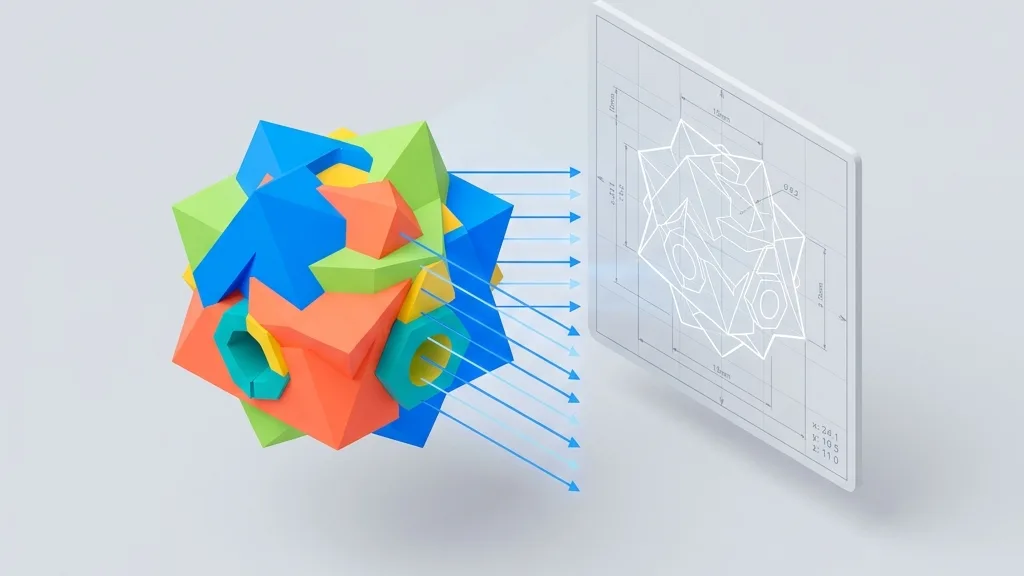
GLB files often embed textured materials, so they instantly render with realistic surfaces. Use orthographic or perspective cameras, add dimension labels, and export at 1x, 2x, or 4x. This makes it easy to create clean product shots for e-commerce listings and accurate visuals for manuals and internal docs.

Tips

  • 1Screenshots keep embedded textures automatically.
  • 2Orthographic for dimensions, perspective for marketing.
  • 3Transparent PNG works with alpha channel.

About Configuration Options

Layout

View Layout

DefaultHorizontal four-up

Choose multi-view arrangement: horizontal four-up, vertical four-up, or a custom set of views and columns.

Horizontal four-upRecommended

Front, right, top and perspective in one row (1×4).

Vertical four-up

Front, right, top and perspective in one column (4×1).

Custom

Pick views and column count for a custom grid.
Custom views

When using custom layout, choose which camera directions to include.

Columns

Default3

Range1 – 5

Number of columns in the custom grid (1-5, capped by selected view count).

Margin & spacing

Margin

Default0.012

Range0 – 0.1 · step 0.005

Outer margin around the board as a fraction of the short edge.

Gap

Default0.012

Range0 – 0.05 · step 0.002

Spacing between viewports as a fraction of the short edge.

Margin background

Default#ffffff

Fill color for the margin area; transparent is allowed (falls back to white for JPG).

Image background

Viewport background

Default#f5f5f5

Background for each 3D viewport; pick a color or transparent (alpha kept for PNG/WebP).

Dimensions & unit

Show Dimension Lines

DefaultOff

Display bounding box dimensions in the selected unit.

OffRecommended
On

Unit

Defaultmm

Unit

mmRecommended
cm
m
in

Watermark

Show Watermark

DefaultOn

Show Watermark

OnRecommended
Off

Title text

Defaultany3d.cc

Watermark title text (default any3d.cc).

Custom icon

PNG, JPG, WebP or SVG up to 5MB; auto-resized for watermark

Position

DefaultBottom-left

Corner placement of the watermark on the board.

Bottom-leftRecommended
Bottom-right
Top-left
Top-right

Size

Default0.08

Range0.04 – 0.3 · step 0.005

Watermark size as a fraction of the board short edge (~0.04-0.3).

Opacity

Default0.8

Range0.2 – 1 · step 0.05

Watermark opacity (0.2-1).

Export

Image Format

DefaultPNG

Image Format

PNGRecommended
JPG
WebP

Resolution Scale

Default1x

Resolution Scale

1xRecommended
2x
4x

Format Information

Input format

Extension:
glb
Full Name:
GL Transmission Format Binary (glTF 2.0)
Type:
3D Model
Format:
GLB
Description:
GLB is the binary glTF 2.0 format from Khronos Group, packing meshes, materials, textures, and animations into one file. It is the standard for Web 3D and AR/VR, used by Three.js, Babylon.js, model-viewer, and e-commerce previews for self-contained, reliable distribution. GLB supports PBR materials, skeletal animations, Draco and Meshopt compression, suitable for web, AR, and cross-software use. However, it loses CAD parametric history when tessellated from STEP or native CAD. For 3D printing, use STL or 3MF as slicers cannot import GLB.

Notes:

  • Some 3D printing slicers cannot directly import GLB files
  • Not suitable for CAD parametric editing

Supported Features:

  • Single self-contained binary file
  • PBR material support (base color, metallic, roughness, normal maps)
  • Skeletal animation, skinning, and morph targets
  • Draco mesh compression and KTX2 texture compression
  • Multi-mesh nodes and scene hierarchy

Output format

Extension:
Image
Full Name:
PNG / JPG / WebP Image
Type:
Image / Screenshot
Format:
Raster Image with Layout Overlay
Tools:
GIMP
Open With:
System Image Viewer
Description:
Multi-view or single-view screenshot of the 3D model with dimension lines, watermark, and custom backgrounds. Exported as PNG, JPG, or WebP.

Notes:

  • PNG supports transparency
  • Resolution can be scaled to 2x or 4x

Supported Features:

  • Multi-view layouts
  • Dimension lines with units
  • Watermark overlay
  • Transparent background
  • PNG, JPG, WebP export

How to Use

1

Upload Model

Drag and drop your GLB file into the upload area, or click to browse

2

Select View

Choose landscape, portrait, or custom layout. Toggle dimension annotations, units, and watermark

3

Export Image

Download PNG, JPG, or WebP images at 1x, 2x, or 4x resolution

Frequently Asked Questions

View all FAQs
Q

Will the screenshot keep GLB materials and textures?

A

Yes. The tool renders embedded materials, textures, and lighting exactly as they appear in the current viewport: what you see is what you get. The look may simplify only if the source file is missing textures or uses unsupported extension materials.

Q

Is it suitable for e-commerce or product photos?

A

Yes. You can set a solid or transparent background, add a watermark, and arrange multiple views to produce product-page images, manual diagrams, and sharing previews. It is not a replacement for full studio-grade commercial rendering.

Q

Can I export a PNG with a transparent background?

A

Yes. Set the viewport background to transparent and choose PNG or WebP export to keep the alpha channel. JPG does not support transparency and will fall back to an opaque background.

Q

When should I use orthographic instead of perspective?

A

Orthographic views such as front, side, or top have no perspective distortion, so they work best for size comparisons and technical annotations. Perspective views look closer to human vision and are better for product and marketing images. You can combine both in one multi-view export.

Q

Can I batch render multiple GLB files?

A

No, only one file at a time. To cover more angles in a single export, use the custom multi-view layout instead of processing several files.

Q

Are compressed GLB files with Draco or KTX2 supported?

A

Yes. Draco-compressed geometry, KTX2 textures, and meshopt data are decoded automatically in the browser. Very large files may take a little time to decompress.