STP to Image

STP → multi-view screenshots, ideal for engineering and product previews.

Workspace

Loading...

Please wait

About This Tool

Render STP models as static images for display, documentation, and sharing. Same capabilities as STEP, suitable for engineering previews. Supports multi-view layouts and annotations.

Tips

  • 1Same capabilities as STEP, suitable for engineering previews
  • 2Multi-view and 1x/2x/4x export
  • 3Optional transparent background PNG

About Configuration Options

Layout

View Layout

DefaultHorizontal four-up

Choose multi-view arrangement: horizontal four-up, vertical four-up, or a custom set of views and columns.

Horizontal four-upRecommended

Front, right, top and perspective in one row (1×4).

Vertical four-up

Front, right, top and perspective in one column (4×1).

Custom

Pick views and column count for a custom grid.
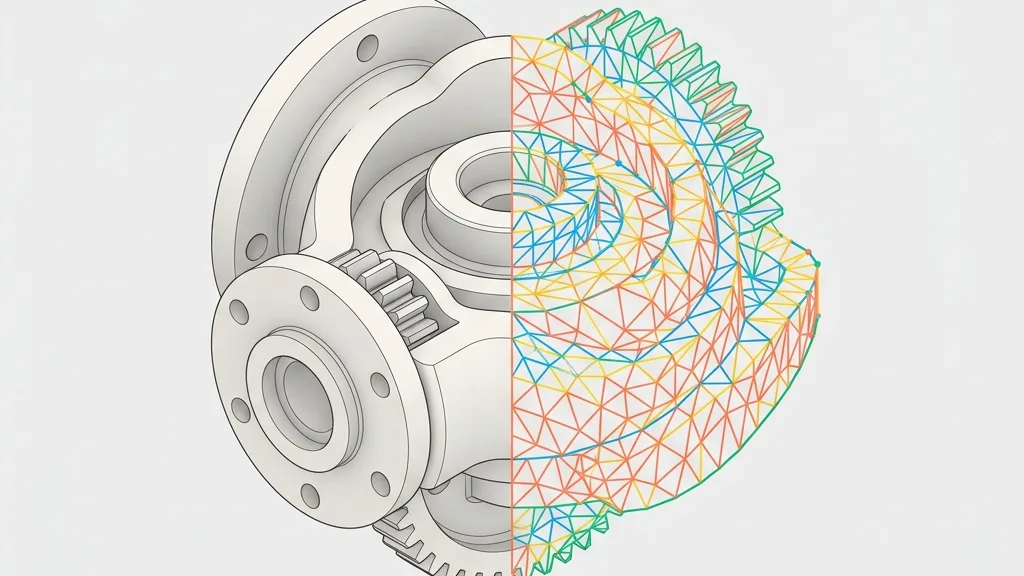
Custom views

When using custom layout, choose which camera directions to include.

Columns

Default3

Range1 – 5

Number of columns in the custom grid (1-5, capped by selected view count).

Margin & spacing

Margin

Default0.012

Range0 – 0.1 · step 0.005

Outer margin around the board as a fraction of the short edge.

Gap

Default0.012

Range0 – 0.05 · step 0.002

Spacing between viewports as a fraction of the short edge.

Margin background

Default#ffffff

Fill color for the margin area; transparent is allowed (falls back to white for JPG).

Image background

Viewport background

Default#f5f5f5

Background for each 3D viewport; pick a color or transparent (alpha kept for PNG/WebP).

Dimensions & unit

Show Dimension Lines

DefaultOff

Display bounding box dimensions in the selected unit.

OffRecommended
On

Unit

Defaultmm

Unit

mmRecommended
cm
m
in

Watermark

Show Watermark

DefaultOn

Show Watermark

OnRecommended
Off

Title text

Defaultany3d.cc

Watermark title text (default any3d.cc).

Custom icon

PNG, JPG, WebP or SVG up to 5MB; auto-resized for watermark

Position

DefaultBottom-left

Corner placement of the watermark on the board.

Bottom-leftRecommended
Bottom-right
Top-left
Top-right

Size

Default0.08

Range0.04 – 0.3 · step 0.005

Watermark size as a fraction of the board short edge (~0.04-0.3).

Opacity

Default0.8

Range0.2 – 1 · step 0.05

Watermark opacity (0.2-1).

Export

Image Format

DefaultPNG

Image Format

PNGRecommended
JPG
WebP

Resolution Scale

Default1x

Resolution Scale

1xRecommended
2x
4x

Format Information

Input format

Extension:
step, stp
Full Name:
STEP (Standard for the Exchange of Product Model Data)
Type:
CAD Model
Format:
STEP
Description:
STEP (ISO 10303) is an international standard for CAD data exchange, preserving precise geometry with NURBS and solid modeling. Widely used in mechanical design and manufacturing, it retains parametric features and assembly structures, unlike mesh formats (STL/OBJ), enabling lossless transfer between CAD software. STEP suits engineering precision, not real-time rendering. Browsers and game engines require conversion to mesh. Recommended workflow: design in CAD, export STEP for archiving, then convert to STL/GLB for preview or printing. .stp and .step are identical variants.

Notes:

  • CAD software required for editing parametric features
  • Not suitable for real-time or web rendering

Supported Features:

  • ISO-standard CAD exchange format
  • Precise parametric surface modeling
  • Widely supported by CAD/CAM/CAE software
  • Suitable for engineering and manufacturing

Output format

Extension:
Image
Full Name:
PNG / JPG / WebP Image
Type:
Image / Screenshot
Format:
Raster Image with Layout Overlay
Tools:
GIMP
Open With:
System Image Viewer
Description:
Multi-view or single-view screenshot of the 3D model with dimension lines, watermark, and custom backgrounds. Exported as PNG, JPG, or WebP.

Notes:

  • PNG supports transparency
  • Resolution can be scaled to 2x or 4x

Supported Features:

  • Multi-view layouts
  • Dimension lines with units
  • Watermark overlay
  • Transparent background
  • PNG, JPG, WebP export

How to Use

1

Upload Model

Drag and drop your STP file into the upload area, or click to browse

2

Select View

Choose landscape, portrait, or custom layout. Toggle dimension annotations, units, and watermark

3

Export Image

Download PNG, JPG, or WebP images at 1x, 2x, or 4x resolution

Frequently Asked Questions

View all FAQs
Q

What is the difference between STP and STEP?

A

They are usually the same ISO 10303 exchange format with different extensions (.stp / .step). This page is tailored for .stp files and offers the same capabilities as STEP to image conversion.

Q

Will large assembly STP files screenshot slowly?

A

Complex assemblies cost more CPU/memory to mesh and render. Simplify or split parts in CAD first if needed. Browser lag reflects device limits; files are not uploaded to a server.

Q

Does meshing distort the shape?

A

Surfaces become triangles, so fillets and tiny features may look slightly faceted up close. That is fine for most previews and attachments; use CAD drawings for tolerance-critical views.

Q

Can I add dimension labels for engineering previews?

A

Yes. Enable dimension lines and choose mm/cm/m/in. Orthographic multi-views help check bounding size and orientation for internal review and client previews.

Q

Does zooming or panning the preview change what is exported?

A

No. Preview zoom and pan are display-only and do not affect the captured image. The export always uses the layout's framing at the selected 1x/2x/4x resolution.

Q

How many views can I combine in one image?

A

The horizontal and vertical layouts each combine four views: front, right, top, and perspective. The custom layout lets you pick any subset of front, back, left, right, top, bottom, and perspective, arranged in 1-5 columns.