
Output Dimensions
Set the output width and height. Square presets (e.g. 1024×1024) suit texture workflows; use custom with optional aspect-ratio lock to keep source proportions. Format-conversion pages default to the source size.
WebP → PNG: lossless conversion, preserving transparency and color depth for 3D textures and material maps.
Please wait
Convert WebP images to PNG for maximum compatibility across design tools and 3D pipelines. PNG is lossless and supports transparency, making it ideal for albedo, mask, and UI textures as well as general editing. Everything is processed locally in your browser.
Set the output width and height. Square presets (e.g. 1024×1024) suit texture workflows; use custom with optional aspect-ratio lock to keep source proportions. Format-conversion pages default to the source size.
Defaulton
When enabled in custom size mode, changing width or height automatically scales the other side to match the source image proportions. Disable to set width and height independently.
Drop a PNG, JPEG, WebP, BMP, or KTX2 texture/image file. KTX2 inputs are automatically decoded to PNG for conversion.
Choose output format when available (PNG, JPEG, WebP, KTX2), set texture dimensions, and adjust quality. For KTX2, pick ETC1S or UASTC.
Click Convert to process the image or texture. The file downloads automatically in your chosen format, ready for web, design, or 3D pipelines.
PNG has wider compatibility across design tools, DCC applications, and many 3D engines that expect PNG texture maps. If a pipeline or older app does not support WebP, converting to PNG keeps the asset usable.
No. The conversion is lossless, so every pixel and the alpha channel are preserved exactly.
Usually yes. PNG relies on lossless compression while WebP can use lossy compression, so the PNG version tends to be bigger than the source WebP.
Yes. PNG is a standard format for albedo, normal, roughness, and other texture maps. Convert WebP textures to PNG when your engine, exporter, or DCC tool requires PNG.
Animated WebP cannot be converted to PNG as animation. Only the first frame is extracted and saved as a static PNG. For animation, use GIF or APNG instead.
Convert when a tool or engine does not accept WebP, when the image has transparency or needs further editing, or when you want a lossless intermediate file. Plain photos without alpha rarely benefit from PNG.
Why does a 1.5MB JPG balloon to 87MB in VRAM? What's so wrong with PNG/JPG from a GPU's perspective? And how do GPU-native texture formats, Basis Universal, and KTX2 all fit together?
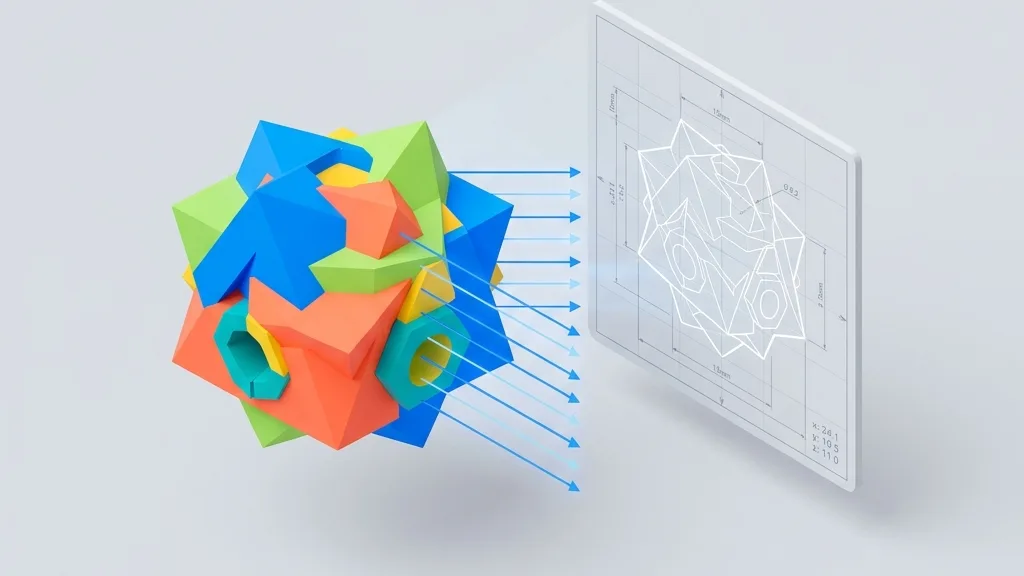
Ditch heavy CAD software for good. Learn how to export STL/STEP files as high-res 2D screenshots with dimension lines and transparent backgrounds directly in your browser—essential for e-commerce product shots and engineering drawings.

Desktop, mobile, VR, mini-programs—which compression combination should you use? This article consolidates the knowledge from the previous four articles into a decision matrix and an automation script—just follow it.
Your GLB file is only 10MB, but on your phone it eats 200MB of VRAM and crashes. Let's take a closer look at what's really going on.